Configure SAML single sign-on for Salesforce
Accops let users to Single Sign-On into Salesforce account with one set of login credentials, eliminating user-managed passwords and the risk of phishing. Salesforce Single Sign-On set up leverages the existing on-premise Active Directory infrastructure and provides seamless integration without the need to manage multiple on-premise and cloud identities.
Environment#
- Accops HySecure Gateway v5299, v5360, v6026 onwards
- Salesforce Tenant
Prerequisites#
- Salesforce Admin Portal Access.
- Accops HySecure Gateway with Public DNS name and valid SSL Certificate.
- Management console of HySecure Gateway using Security Officer Account.
- Shell Access to Hysecure Gateway.
Configurations#
Steps to setup Salesforce in Accops (Identity Provider)#
Step 1: Login with a digital certificate in Accops HySecure Gateway using Security Officer Account.

Step 2: Go to "Access Management >> Applications >> Add" .

Step 3: Click on Add button to create new application as "Salesforce".
Type : HTTPS
Name: Salesforce
Description: Salesforce
Application Server Address: accops-dev-ed.lightning.force.com
Application Port: 443
Protocol: TCP
Web URL:  https://accops-dev-ed.lightning.force.com/lightning/setup/SetupOneHome/home
Use Reverse Proxy: No
Hidden Application: No
Hide Access Pop-up : No
Enable App Tunneling : Yes
Enable L3 VPN Tunneling : No
Enable Single Sign-on : Yes
Authentication Type : SAML Based
Preconfigured Service Provider : Salesforce
Service Provider Login URL: https://accops-dev-ed.my.salesforce.com
Service Provider Logout URL : https://accops-dev-ed.my.salesforce.com/services/auth/sp/saml2/logout
Audience : https://saml.salesforce.com
Issuer : https://sso.accops.cloud (HySecure Gateway Address)
Step 4: Add Salesforce app into New/Existing Application Groups.

Step 5: Create/Update an "Application Access" in New/Existing "Access Controls"

Step 6: Verify SAML SSO Certificate in Accops HySecure Gateway.
Please ensure below files availability in Accops HySecure Gateway.
-rw-r--r-- 1 apache fes    2029 Mar 11 11:08 SAML_Signing_Certificate
-rw------- 1 apache fes 2498 Mar 11 11:09 SAML_Signing_Private_KeyStep 7: Copy the content of SAML SSO Certificate SAML_Signing_Certificate form Accops Gateway.
Steps to setup Accops in Salesforce (Service Provider)#
Step 1: Go to to Salesforce https://login.salesforce.com or https://domain.my.salesforce.com with Admin Access.
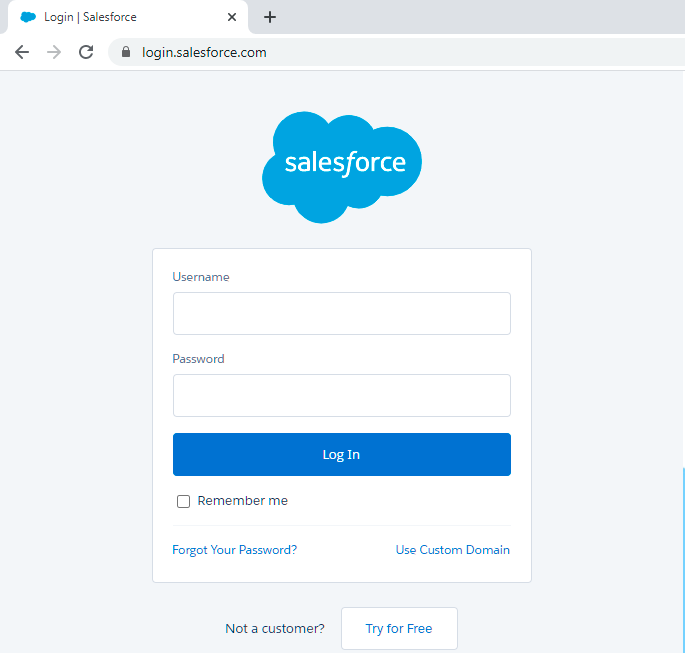
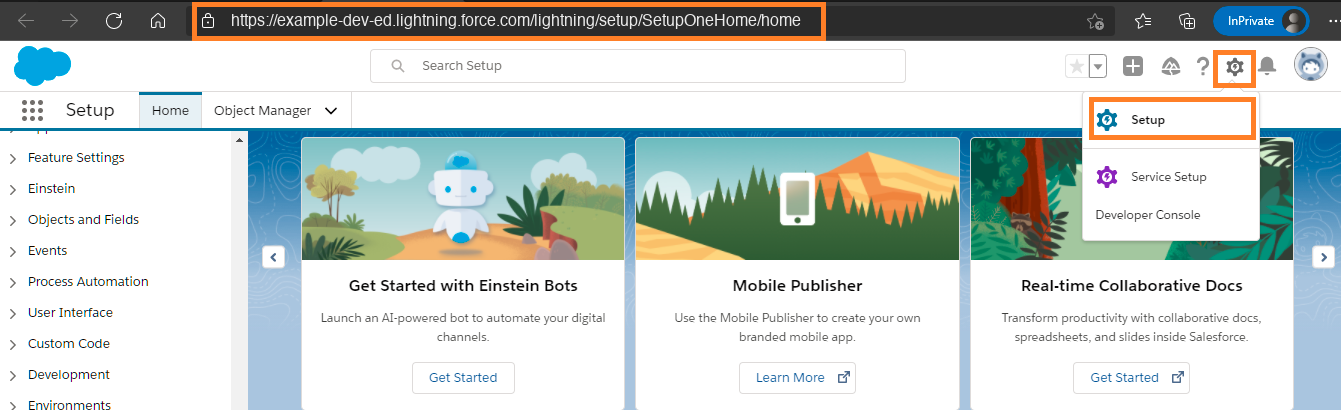
Step 2: After Login to Salesforce Portal, Go to Settings.
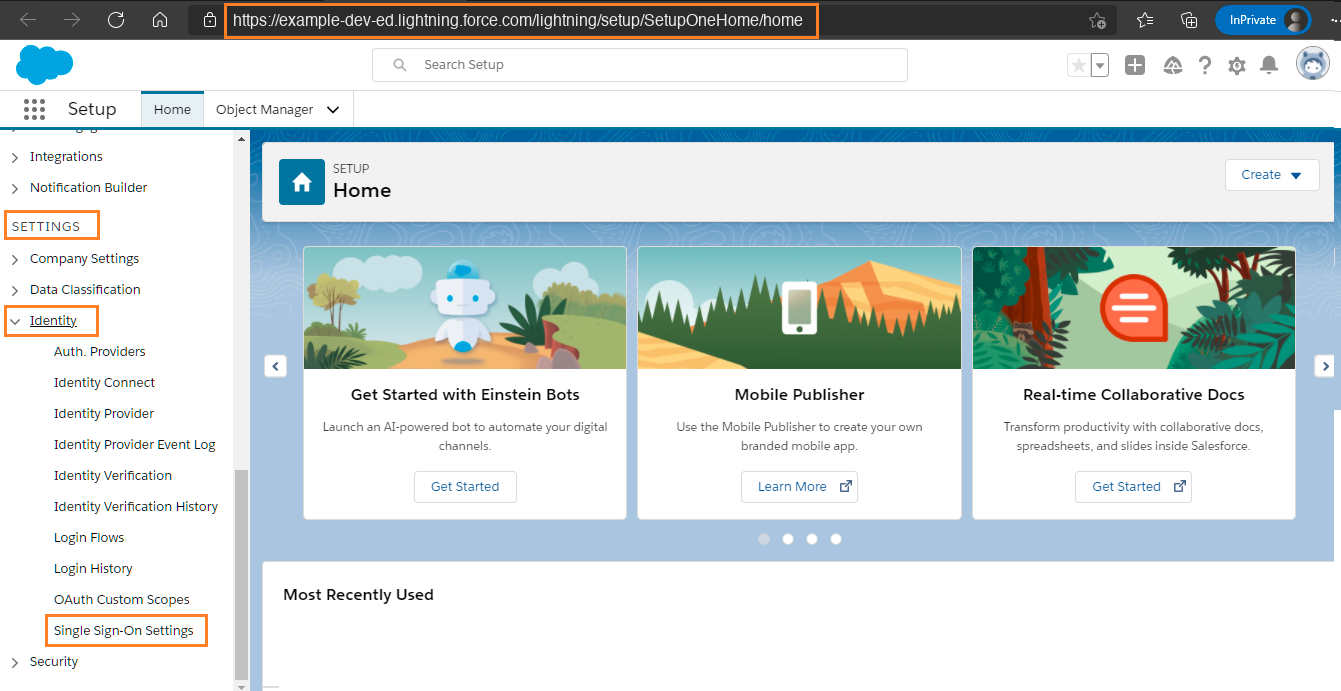
Step 3: Go to Settings >> Identity >> Single Sign-On Settings.
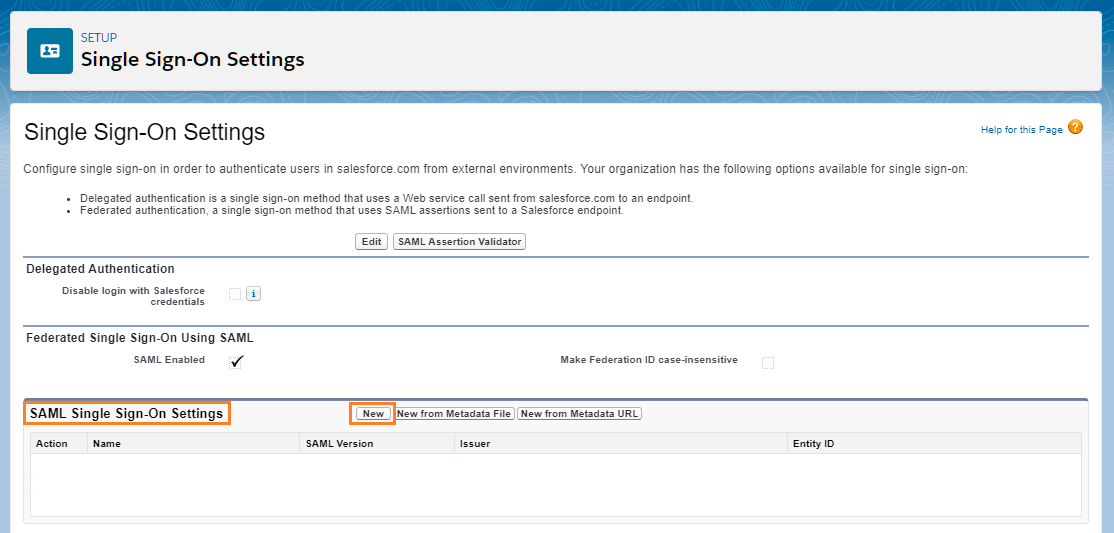
Step 4: Click on New
Step 5: Fill the Required Details.
Name: Accops_IDP_Server
API Name: Accops_IDP_Server
SAML Version: 2.0
Issuer: https://sso.accops.cloud                                     <Please replace *sso.accops.cloud* with your Accops IDP Server>
Entity ID: https://saml.salesforce.com
Identity Provider Certificate: Import *SAML SSO Certificate* from Accops HySecure Gateway. (As per Prerequisites)
Request Signature Method: RSA-SHA256
Assertion Decryption Certificate: Assertion not encrypted
SAML Identity Type: Assertion contains the User's Salesforce username
SAML Identity Location: Identity is in the NameIdentifier element of the Subject statement
Service Provider Initiated Request Binding: HTTP POST
Identity Provider URL: https://sso.accops.cloud/saml-sso/salesforce  <Please replace *sso.accops.cloud* with your Accops IDP Server>
Custom Logout URL: https://sso.accops.cloud/saml-slo/salesforce      <Please replace *sso.accops.cloud* with your Accops IDP Server>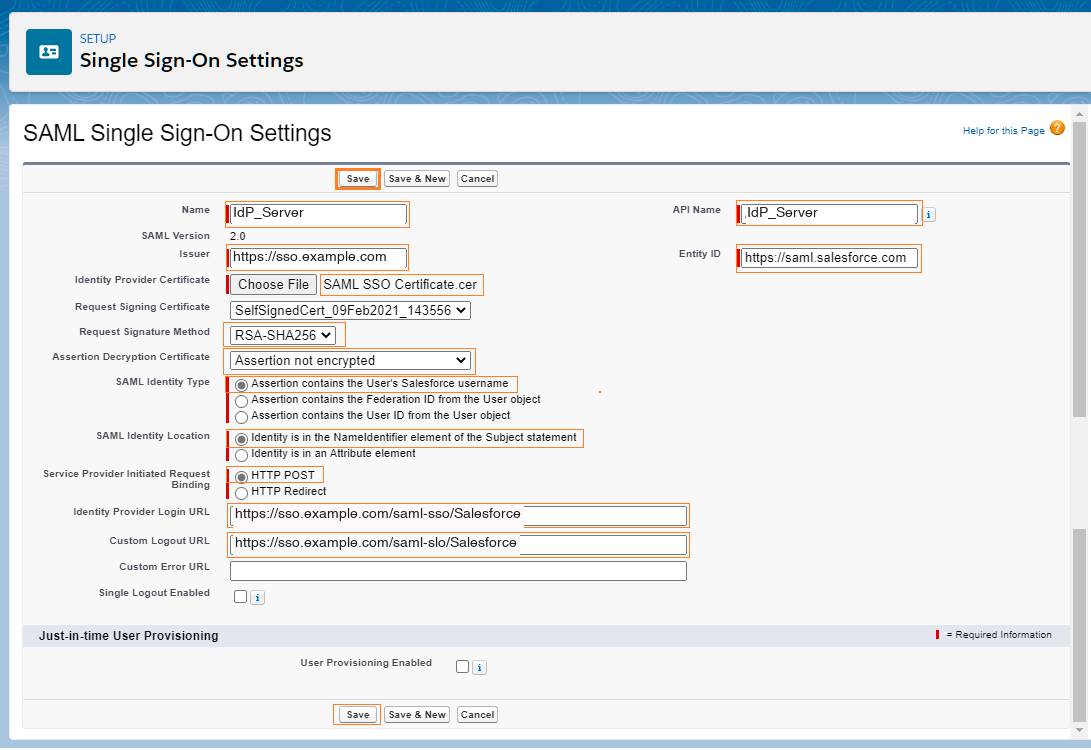
Step 5: Verify the IDP Settings and Endpoint details of Salesforce.
- Your Organization Login URL https://accops-dev-ed.my.salesforce.com Logout URL https://accops-dev-ed.my.salesforce.com/services/auth/sp/saml2/logout
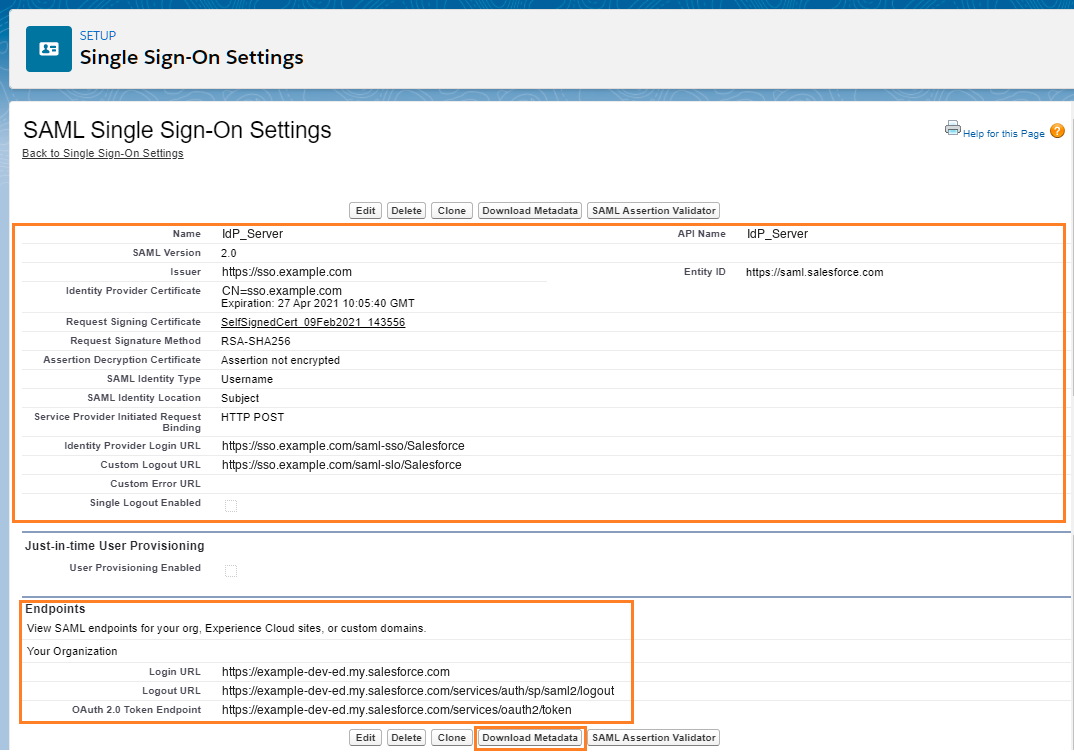
Click on Download Metadata to Configure the Identity Provider Server, If it is not configured
Sign in to your Salesforce#
Using IDP initiated login#
- Go to Accops Workspace Portal (https://sso.accops.cloud)
For Example:

Username: pravind.kumar
Password: xxxxxx
Domain: accops.cloud
Enter Your Login Credentials, Choose domain from dropdown and click on Sign In.

Verify yourself using Multi-Factor Autentcication by choosing the type of MFA from dropdown.

Post successful Authentication and Authorization User will will be redirected to Accops Workspace Portal.

click on Salesforce icon to launch Single Sign On access to Salsefore Portal.

Using SP initiated login#
Go to to Salesforce https://accops-dev-ed.my.salesforce.com and select Login using Accops SSO
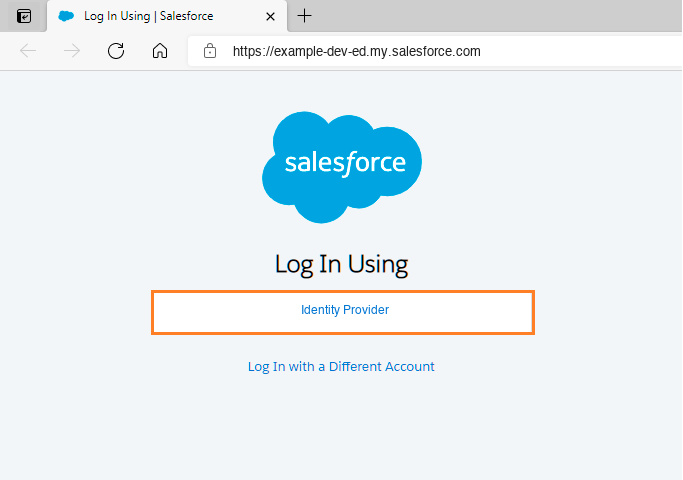
Authentication request will be redirected to Organization Sign in Page (Accops IDP Login Portal), Enter Authentication details and click on Sign-In.
For Example:

Username: pravind.kumar
Password: xxxxxx
On Below Screen, Accops IDP Server will Prompt More Authentication required, Choose Send Push to Mobile/Desktop and Authorize the Desktop Push to Login.

Access Salesforce Portal.
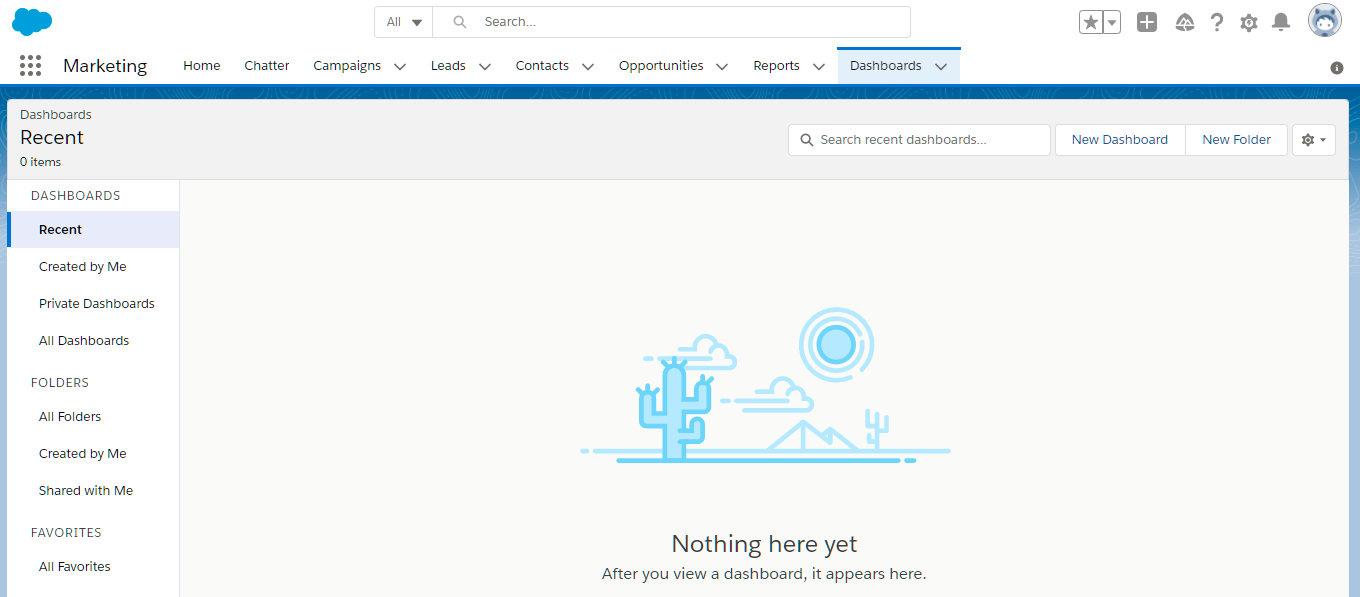
Help/Support#
Please send a mail to support@accops.com for further help/Support.