Configure SAML single sign-on for Google Workspace
Accops let users to Single Sign-On into Google Workspace account with one set of login credentials, eliminating user-managed passwords and the risk of phishing. Google Workspace Single Sign-On set up leverages the existing on-premise Active Directory infrastructure and provides seamless integration without the need to manage multiple on-premise and cloud identities.
Environment#
- Accops HySecure Gateway v5299, v5360, v6026 onwards
- Gsuite Tenant
Prerequisites#
- Gsuite Admin Console Access.
- Accops HySecure Gateway with Public DNS name and valid SSL Certificate.
- Management console of HySecure Gateway using Security Officer Account.
- Shell Access to Hysecure Gateway.
Configurations#
Steps to setup G-Suite in Accops (Identity Provider)#
Step 1: Login with a digital certificate in Accops HySecure Gateway using Security Officer Account.

Step 2: Go to "Access Management >> Applications >> Add" .

Step 3: Click on Add button to create new application as "google".
Type : HTTPS
Name: GMail
Description: Gsuite
Application Server Address: account.google.com
Application Port: 443
Protocol: TCP
Web URL:  https://account.google.com/a/onaccops.com
Use Reverse Proxy: No
Hidden Application: No
Hide Access Pop-up : No
Enable App Tunneling : Yes
Enable L3 VPN Tunneling : No
Enable Single Sign-on : Yes
Authentication Type : SAML Based
Preconfigured Service Provider : google
Service Provider Login URL: https://www.google.com/a/onaccops.com/acs
Service Provider Logout URL : https://www.google.com/a/onaccops.com/saml2/sp/slo
Audience : https://mail.google.com/a/onaccops.com
Issuer : https://sso.accops.cloud (HySecure Gateway Address)
Step 4: Add google app into New/Existing Application Groups.

Step 5: Create/Update an "Application Access" in New/Existing "Access Controls"

Step 6: Verify SAML SSO Certificate in Accops HySecure Gateway.
Please ensure below files availability in Accops HySecure Gateway.
-rw-r--r-- 1 apache fes    2029 Mar 11 11:08 SAML_Signing_Certificate
-rw------- 1 apache fes 2498 Mar 11 11:09 SAML_Signing_Private_KeyStep 7: Copy the content of SAML SSO Certificate SAML_Signing_Certificate form Accops Gateway.
Steps to setup Accops in G-Suite (Service Provider)#
Step 1: Go to Google Admin Console https://admin.google.com/u/1/?pli=1 and login with Admin Access.
Step 2: Select Security from Google Admin Console.

Step 3: Select Set up single sign-on (SSO) with a third party IdP.
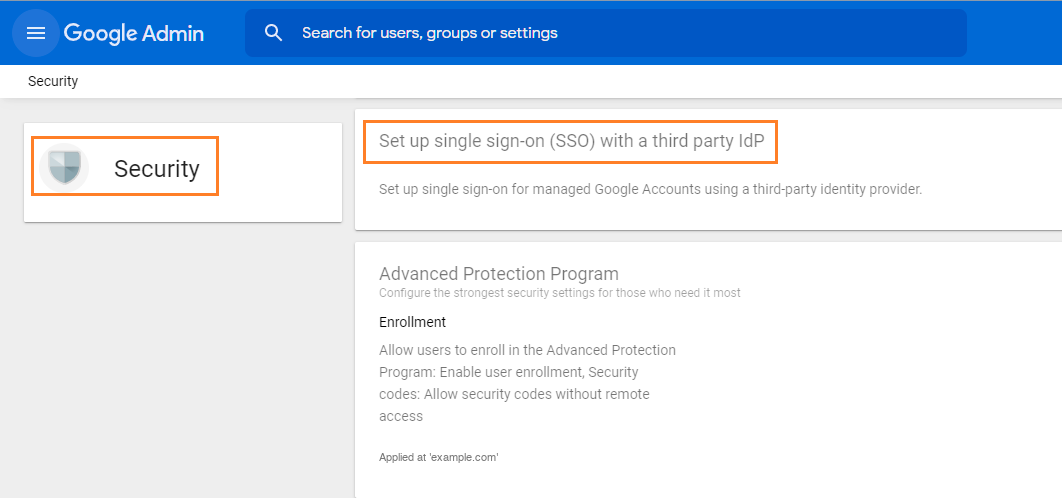
Step 4: Configure Accops IdP Server Details as below and Click on Save.
Sign-in Page URL : https://sso.accops.cloud/saml-sso/G-Suite

Sign-out page URL: https://sso.accops.cloud/saml-slo/G-Suite

Upload IdP SSL Certificate : SAML_SSO_Certificate.cer

Select *Use a domain-specific issuer*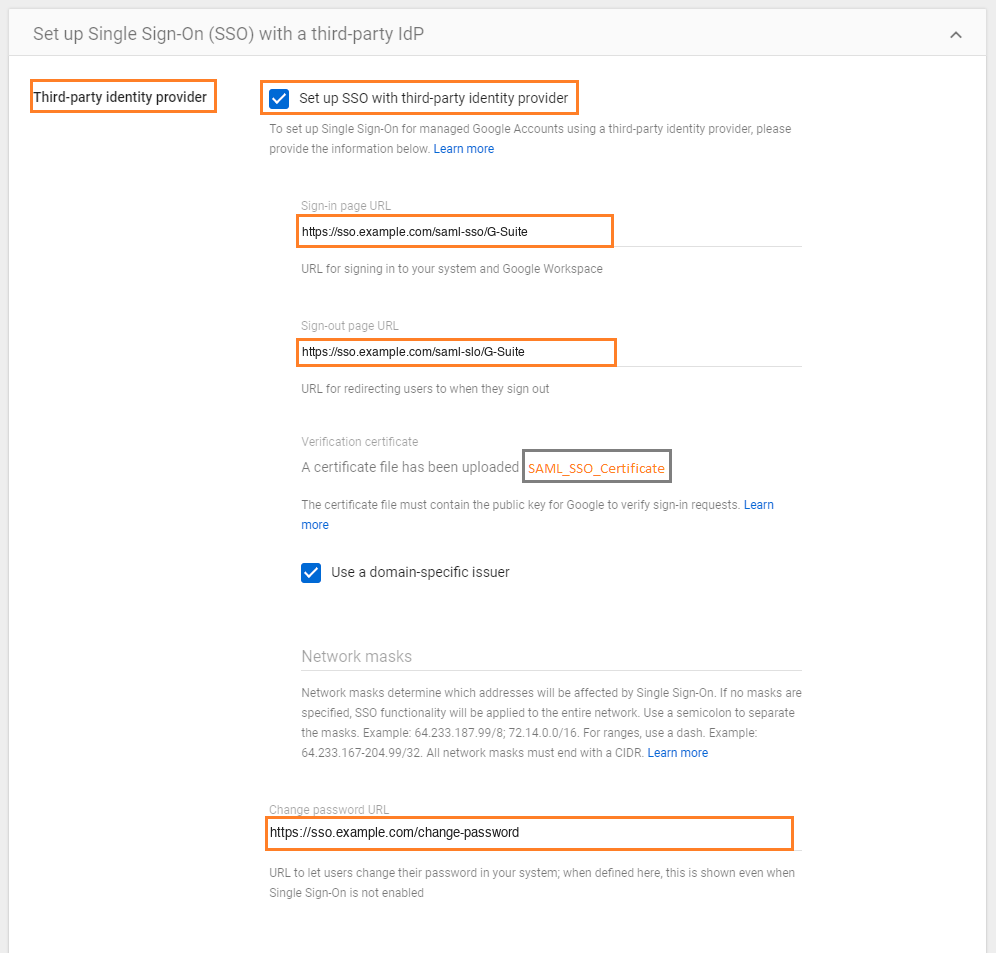
Sign in to your G-Suite#
Using IDP initiated login#
- Go to Accops Workspace Portal (https://sso.accops.cloud)
For Example:

Username: pravind.kumar
Password: xxxxxx
Domain: onaccops.com
Enter Your Login Credentials, Choose domain from dropdown and click on Sign In.

Verify yourself using Multi-Factor Autentcication by choosing the type of MFA from dropdown.

Post successful Authentication and Authorization User will will be redirected to Accops Workspace Portal.

Click on G-Suite icon to launch Single Sign On access to Gmail.

Using SP initiated login#
Go to to Gmail https://mail.google.com and select Login using Accops SSO
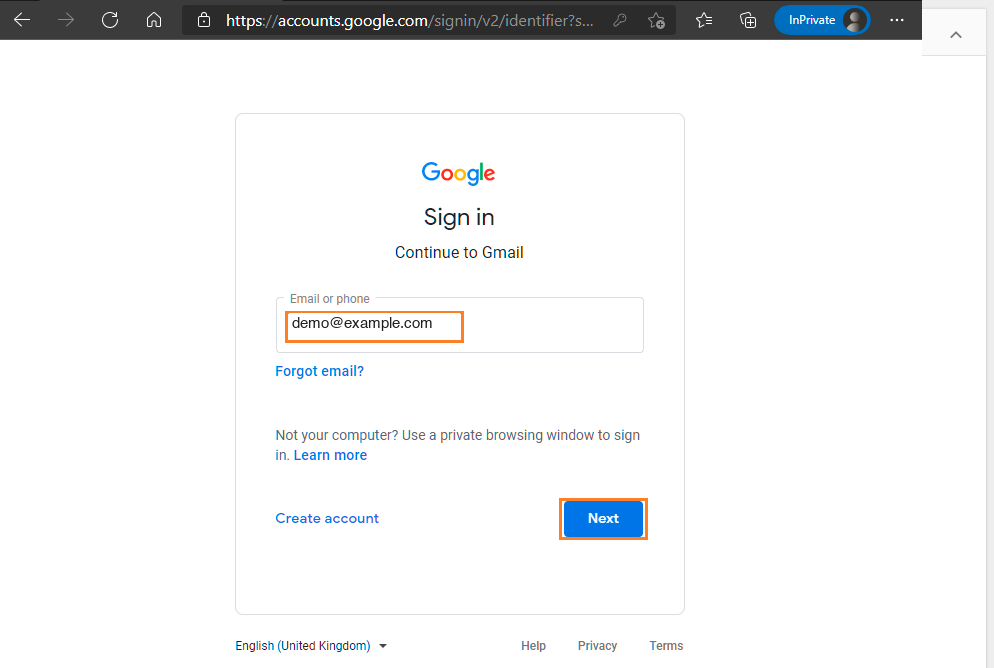
Authentication request will be redirected to Organization Sign in Page (Accops IDP Login Portal), Enter Authentication details and click on Sign-In.
For Example:

Username: pravind.kumar
Password: xxxxxx
On Below Screen, Accops IDP Server will Prompt More Authentication required, Choose Send Push to Mobile/Desktop and Authorize the Desktop Push to Login.

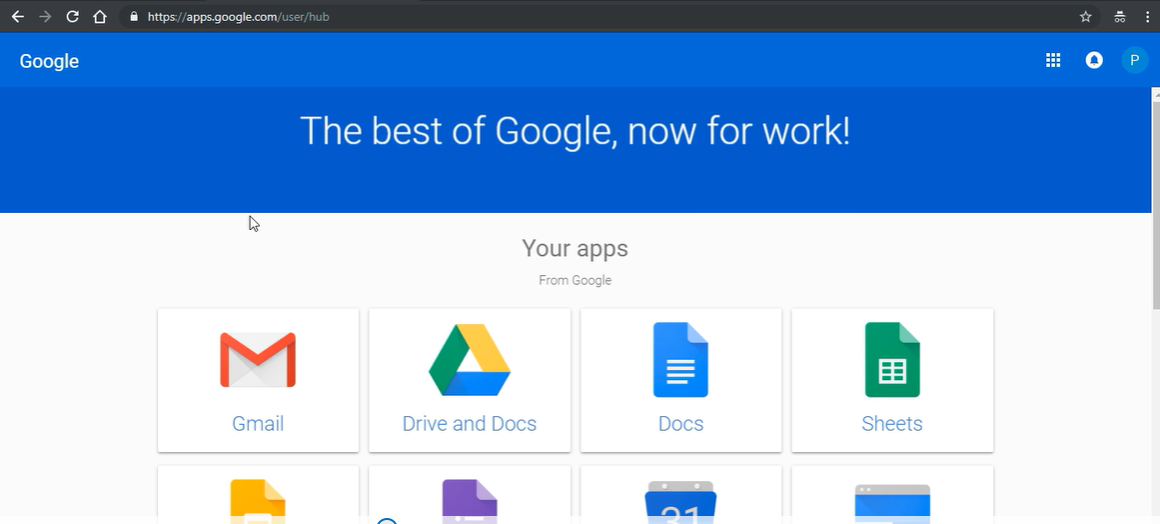
Access G-Suite Portal.
Help/Support#
Please send a mail to support@accops.com for further help/Support.